
Get the exact last frame (not a near-last frame)
The usual way to grab the end of a clip is to seek a fraction of a second before the end and save whatever the player shows. That often returns the second-to-last frame, or a frame from a few hundred milliseconds earlier, because seeking lands on the nearest frame the player can reach quickly. Phone gallery apps behave the same way, which is why “export frame” at the very end of a clip so often gives the wrong picture.
To extract the last frame from a video correctly, this page does not seek by time. It reads the list of every frame in the file, sorts them by presentation time, and decodes the last one that is actually displayed. The result card shows the frame number out of the total (for example #300 of 300), the timecode and the resolution, so you can see that it really is the final frame. Videos recorded on phones in portrait are turned upright using the rotation stored in the file.
The image is saved at full resolution. PNG is the default because it is lossless: if you feed the frame into another program, it gets exactly the decoded pixels and not a recompressed copy. Switch to JPG or WebP for smaller files.
Use the last frame to extend an AI video
Image-to-video generators create clips of a few seconds. To make a longer shot, a common workflow is to take the final frame of one clip and use it as the starting image of the next, so the motion continues from the same pose and lighting. If the starting image is even one frame off, the join shows a small jump.
- Open the generated clip here. The last frame is extracted automatically.
- Press Copy image to put it on the clipboard and paste it straight into the generator, or press Download to save a PNG.
- Generate the next clip from that image, then repeat with the new clip.
Editors use the same trick for freeze frames at the end of a cut, and for matching the end of one take to the start of another. To check the frames around the cut one by one, open the clip in the frame by frame video player.
Get the first frame of a video, or the last N frames
Choose The first and the last frame to get both ends of the clip side by side, which is handy for poster images and for checking that a loop starts and ends on the same picture. Choose The last N frames to get the final 2 to 300 frames in order, for example to pick the cleanest ending frame when the camera is still moving, or to find the frame just before a fade to black.
Whichever option you choose, the tool works the same way as when you extract the last frame from a video: every frame comes from the frame list, so frame numbers are exact. Several frames come with a ZIP download. Each file name includes the frame number. If you need frames from anywhere else in the video, at regular intervals or all of them, use the video frame extractor.
Example results
Input: our sample video (10 seconds, 1280×720, 30 frames per second, 300 frames).
| Setting | Frames returned | Time |
|---|---|---|
| Last frame | #300 of 300 | 0:09.967 |
| First and last frame | #1 and #300 | 0:00.000 and 0:09.967 |
| Last 5 frames | #296 – #300 | 0:09.833 – 0:09.967 |
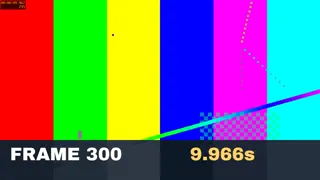
The last frame starts at 9.967 s, not 10.000 s: in a 10-second clip at 30 fps, frame 300 is shown from 299/30 s until the end. The sample prints the frame number on each frame (its label cuts the time to 9.966 s), so you can check the result against the picture.