
How to extract frames from video
- Open the video. Choose a file or drop it on the box above. MP4, MOV and WebM work in current browsers. The video is read from your disk; it is not sent anywhere.
- Find the frame or the range you need. Drag the slider, use the arrow keys (← → for one frame, Shift + arrow for one second) or type a time such as
1:05.25. The readout under the preview shows the frame number and the exact timecode. - Pick a mode. Capture single frames by hand, or let the tool take one frame every N seconds, a fixed number of frames per second, every frame, a set number spread evenly, or the sharpest frames in the clip.
- Choose the image format and size. PNG for lossless frames, JPG for small files, WebP for both. Leave the width on Original size to keep full resolution.
- Download. Save a single frame from its card, or download the selection as a ZIP. Each file name carries the time and frame number, so you always know where it came from.
The video frame extractor remembers your format and naming choices in this browser for next time.
Video to frames, in your browser
Most online frame grabbers upload your clip to a server, process it there and send images back. That is slow for large files and means a copy of your video sits on someone else’s computer. This video frame extractor works the other way round: the page loads a small decoder into your browser, the browser decodes the frames, and the images are created on your own device.
That has practical benefits beyond privacy. There is no upload wait, so a 2 GB screen recording opens as quickly as a short phone clip; the tool reads only the parts of the file it needs. It also works offline once the page has loaded. The details, including which browser features are used, are on how the frame extraction works.
Extract every frame or one frame every N seconds
The modes cover the common jobs:
- One frame every N seconds – good for skimming a long recording, building a storyboard or picking reference images. One frame every 1 second from a 10-minute video gives 600 images.
- N frames per second – a steady sample rate, for example 5 per second for motion studies or dataset collection.
- Every frame (image sequence) – all frames in order, with zero-padded numbers for editing and 3D apps or machine-learning datasets. Pick a numbering preset under File names; the estimate shows the number of frames and the approximate size before you start.
- A set number of frames – for example 12 frames spread evenly across the clip. For a single image showing the whole video, the video contact sheet maker lays the frames out in a grid with timecodes.
- The sharpest frames – the tool samples the clip, skips black and blurred frames and keeps the clearest ones, spread out in time.
Start and end times limit any mode to part of the video. Large exports are split into ZIP files of up to 500 frames.
Get a frame from video in one click
When you only need one picture, skip the settings: step to the moment you want and press Capture this frame (or press Enter while the preview has focus). The frame appears below with its frame number and timecode, ready to download at full resolution. Capture as many as you like; they collect in the same results grid.
If the frame you need is the very end of a clip, for example to continue an AI-generated video from where it stopped, use the page that can extract the last frame of a video; it finds the true final frame rather than a frame near the end. For animated images, the GIF frame extractor splits a GIF into its frames with their delays.
Frame-accurate: no blurry, wrong frames
A common complaint about frame grabbers is that the saved image is not the frame that was on screen, or that it looks soft. Both usually come from capturing the browser’s video player: seeking lands on a nearby frame, and the player may show a scaled-down picture.
Here, frames are decoded directly from the video data. The tool knows the presentation time of every frame, so frame 124 of a 30 fps clip is always the frame at 4.100 seconds, and the image is written at the video’s full resolution unless you choose a smaller width. Rotated phone videos are turned upright, and videos with a variable frame rate keep their real timestamps.
Some browsers cannot decode every codec this way. In that case the page falls back to the built-in player, labels the results approximate, and shows a approximate frames badge so you know. To step through a clip and compare frames in detail, use the frame by frame video player.
JPG vs PNG vs WebP for video frames
| Format | Quality | File size | Transparency | Best for |
|---|---|---|---|---|
| PNG | Lossless | Largest | Yes | Editing, datasets, image sequences |
| JPG | Lossy (adjustable) | Smallest | No (filled white) | Sharing, previews, documents |
| WebP | Lossy (adjustable) | Small | Yes | Web pages, mixed use |
Video is already compressed, so PNG does not add detail that was never there; it simply avoids a second round of compression. If you plan to edit or analyse the frames, choose PNG. If you are sending a few stills to someone, JPG at quality 85–90 is hard to tell apart and much smaller.
Example results
Input: our sample video (10 seconds, 1280×720, 30 frames per second, 300 frames). Settings and the frames you get:
| Mode | Frames | Frame numbers |
|---|---|---|
| One frame every 1 second | 10 | 1, 31, 61 … 271 |
| 5 frames per second | 50 | 1, 7, 13 … 295 |
| Every frame | 300 | 1 – 300 |

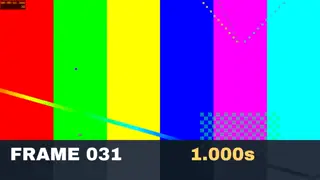
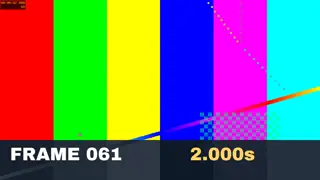
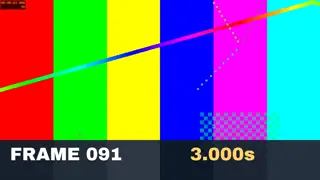
The first frame is black because the sample fades in; the sharpest-frames mode skips frames like this. Each sample frame prints its own number, so you can check that the file name and the picture match.